Apply Design vs. PhotoUp
PhotoUp furnishes empty rooms in minutes using AI style presets. Apply Design works just as fast but gives you far more control over the result. Regenerate and fine-tune as often as you like, arrange furniture from a large library in a self-serve editor, and export editable files you can keep refining. And your first photo is free, with no card required.
First photo free · No card required · Unlimited regenerations
At a glance
Both stage with AI in minutes. Here’s where they differ.
| Apply Design | PhotoUp | |
|---|---|---|
| Free trial | First photo freeNo card required | Card requiredFree credits, but a card on file first |
| Versions & revisions | UnlimitedRegenerate any time | LockedRegenerations stop after download |
| Editing control | Full self-serve editor | Style-based, limited editing |
| Decluttering / item removal | Included | An optional setting |
| Editable, exportable files | YesPlus AI enhancement | NoFinal image only |
| Customer support | 24/7 | Email and chat, business hours |
| Pricing | From $7 per photo, no subscription | From about $4.50 per photo on credits, plans $39 to $319 a month |
Comparison based on pricing and features publicly listed on applydesign.io and photoup.net as of June 2026, plus hands-on testing. Verify current details before relying on them.
Why it matters
The extras that matter once you’re past the first render.
Revisions
Keep regenerating and refining until a room looks right. With PhotoUp, once you download a version the app locks further furniture regenerations, so dialling it in can mean starting over. Apply Design lets you adjust as often as you need.
Control
Rather than choosing from a handful of preset styles, use the self-serve editor to place and swap pieces from a large, varied furniture library, so the staging fits the listing instead of a template.
Output
Download editable files and apply built-in AI enhancement to push quality further. PhotoUp hands back a single finished image with nothing to fine-tune afterward.
Trial
Stage your first photo free without entering any payment details. PhotoUp gives starter credits, but asks for a card on file before you can use them.
Same room, same photo
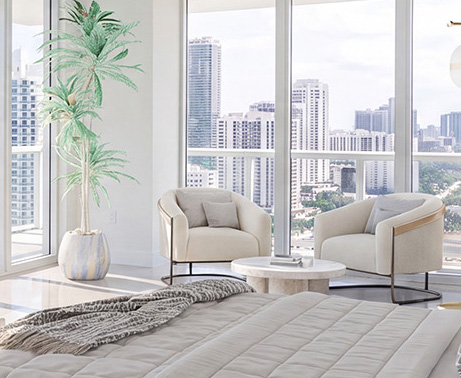
Real rooms staged by each tool. Switch between them and look closely at the detail and realism.


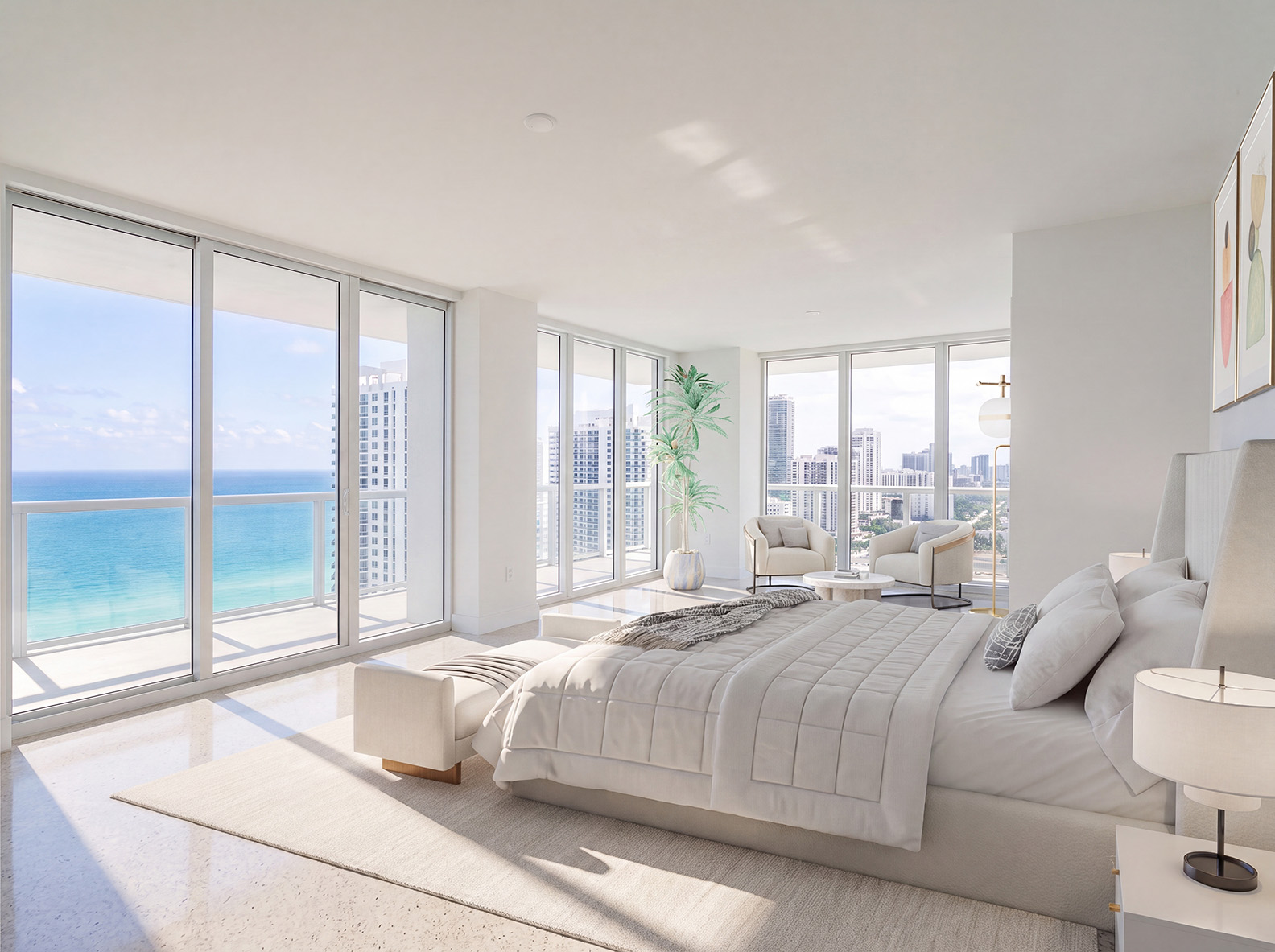

Each pair shows the same room staged by each tool.
| Result attribute | Apply Design | PhotoUp |
|---|---|---|
| Time to first result | In minutes | In minutes |
| Making revisions | Instant and unlimited | Regenerations lock after download |
| Downloadable, separately editable files | Yes | No. Final image only. |
| Enhance image quality with AI | Yes, with advanced AI enhancement tools. 1 coin covers 10 enhancements. | A separate service |
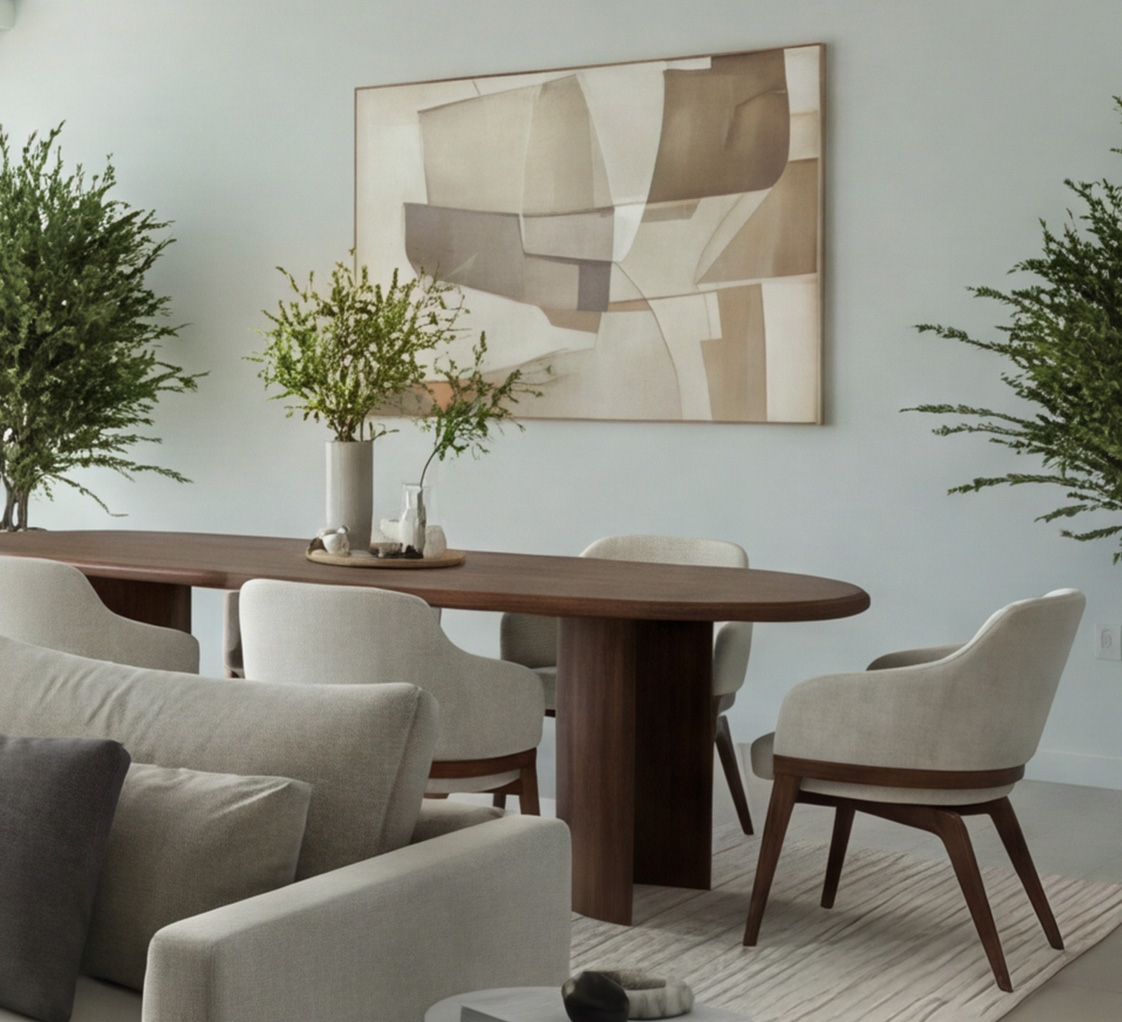
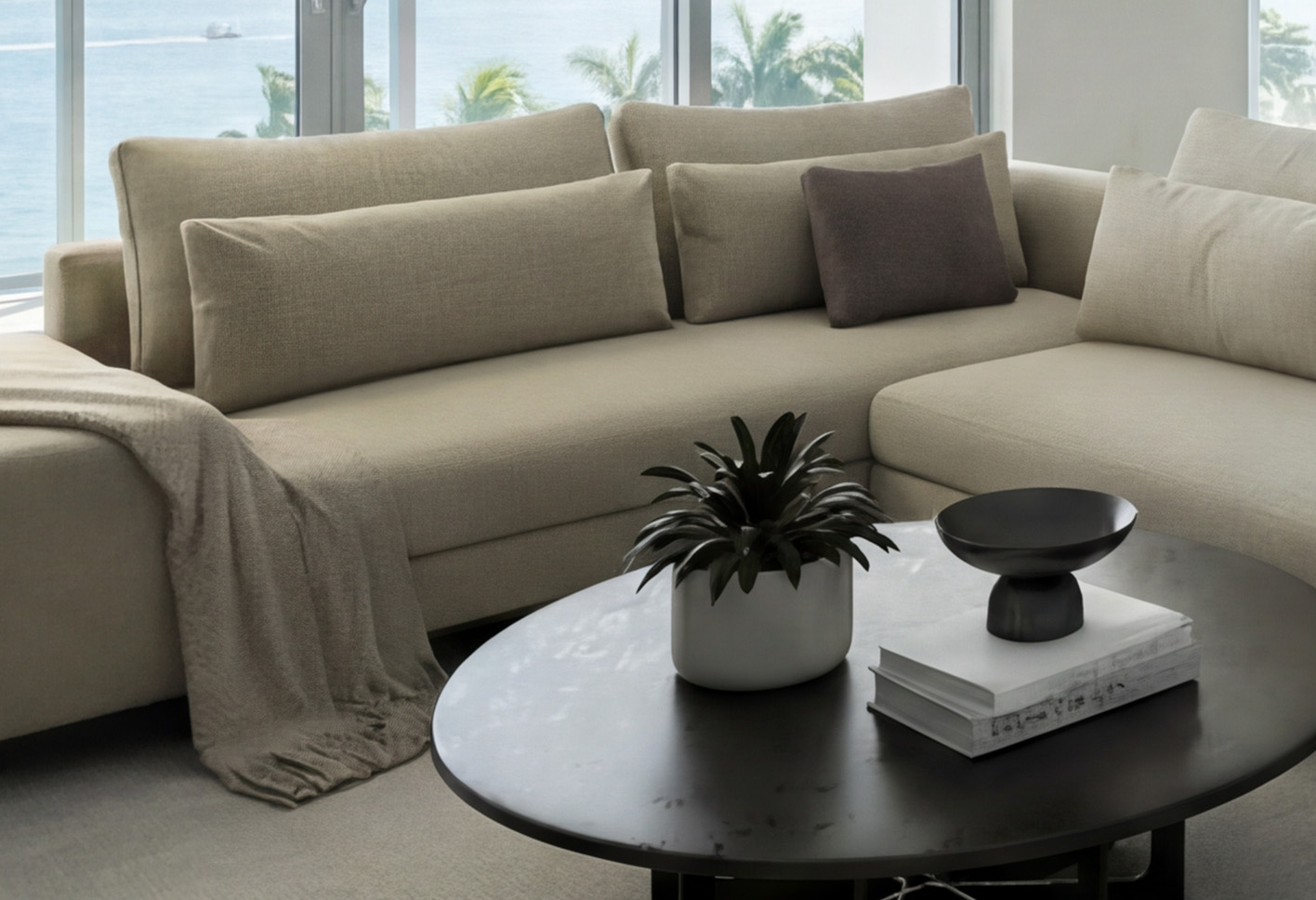
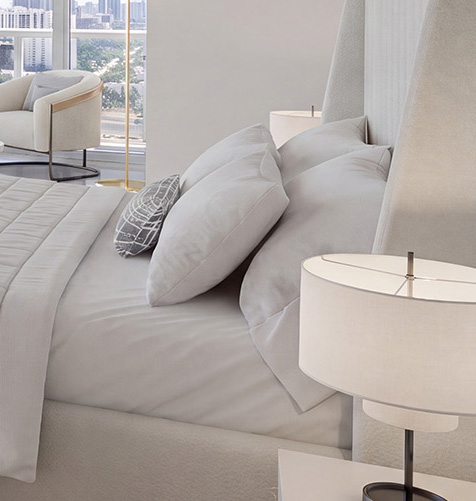
Up close
A closer look at the same areas. Compare the texture, edges, and realism up close.
Living room


Bedroom


The bottom line
If you just want quick, low-cost AI renders with a few style presets, PhotoUp does the job. It’s simple, affordable, and quick. For agents who need a room to look exactly right, Apply Design offers more: unlimited regenerations, a full editor with a large furniture library, and editable exports with built-in AI enhancement.
Both tools deliver staged rooms in minutes, so the real question is how much control and polish you need. When the result has to look right and on-brand, and you’d rather not hand over a card just to try it, Apply Design is the stronger pick, with your first photo free.


