
Property Websites
How to Create a Single Property Website for Your Listing
Building a website for your property just got easy. A single property website used to mean a designer, a developer, and a monthly bill. Now it takes about a minute.
You can try it for free at Apply Design, and your first property website is free. You bring the listing, we write the copy and lay out the pages.
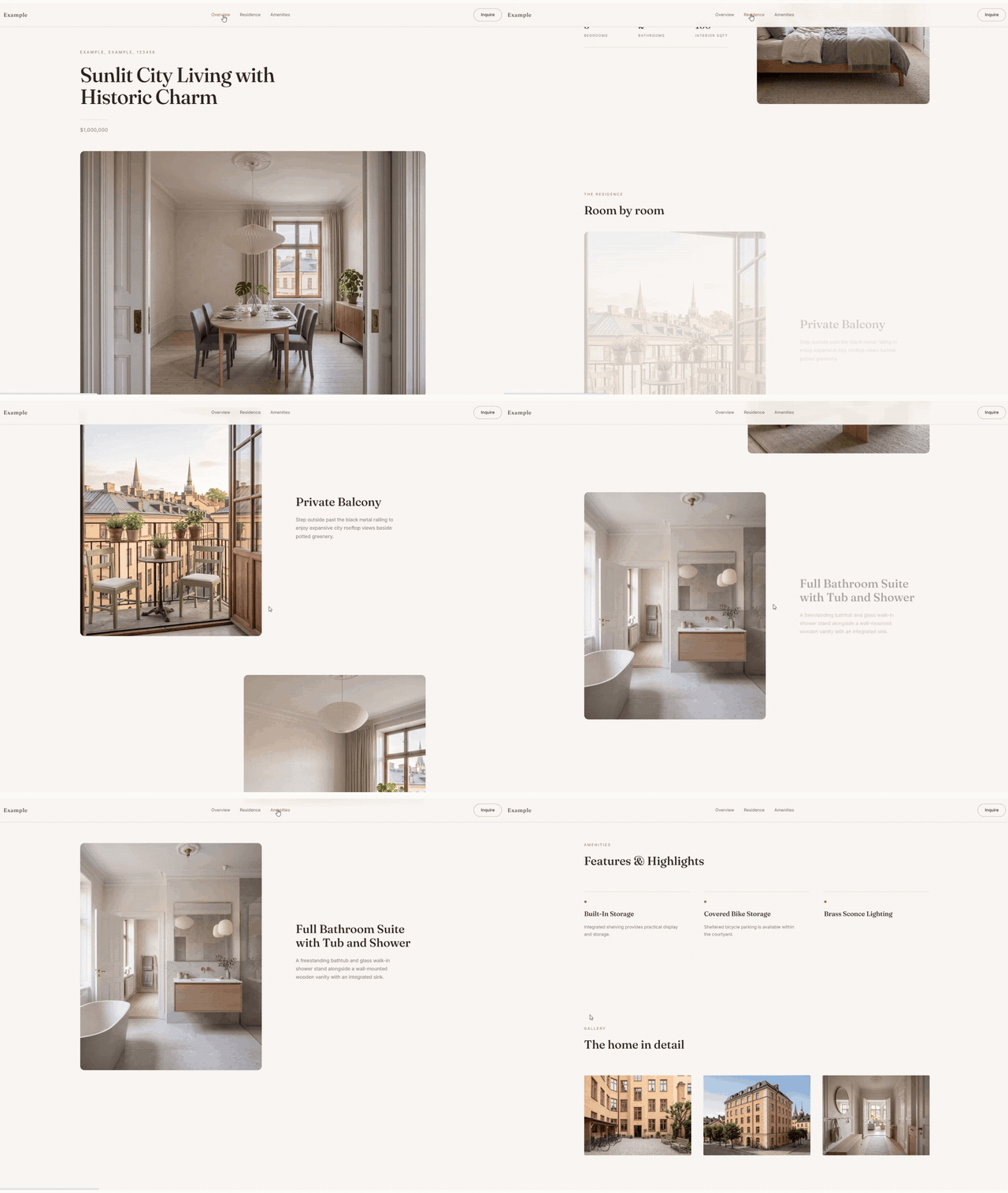
What is a single property website?
It is a website built for one home only. One address, one set of photos, one contact form. No other listings pulling attention away.
Why give your listing its own website
- The home stands on its own. On a portal your listing sits in a row with fifty others. Here there is nothing else to click
- It wins you the next listing. Sellers can see the marketing you do, and they tell other sellers
- One link holds everything. Photos, video, 3D tour, map, and the full description in one place
- The inquiries are yours. Buyers reach out from the page and it comes straight to you, not to a portal that sells the lead on
- You can prove it is working. Show your seller how many people looked and how long they stayed
- Share it anywhere. The same link works in an email, a social post, a flyer, or on the sign outside
What you need before you start
- A property you already staged in Apply Design, a Zillow link, or just your own photos
- The address, the price, and the basic facts of the home
- Your agent profile: name, photo, phone, and email
- A desktop or laptop, the website editor needs the bigger screen
How to create your property website
Five steps. The first three are a short setup wizard: Start, Review, Launch.
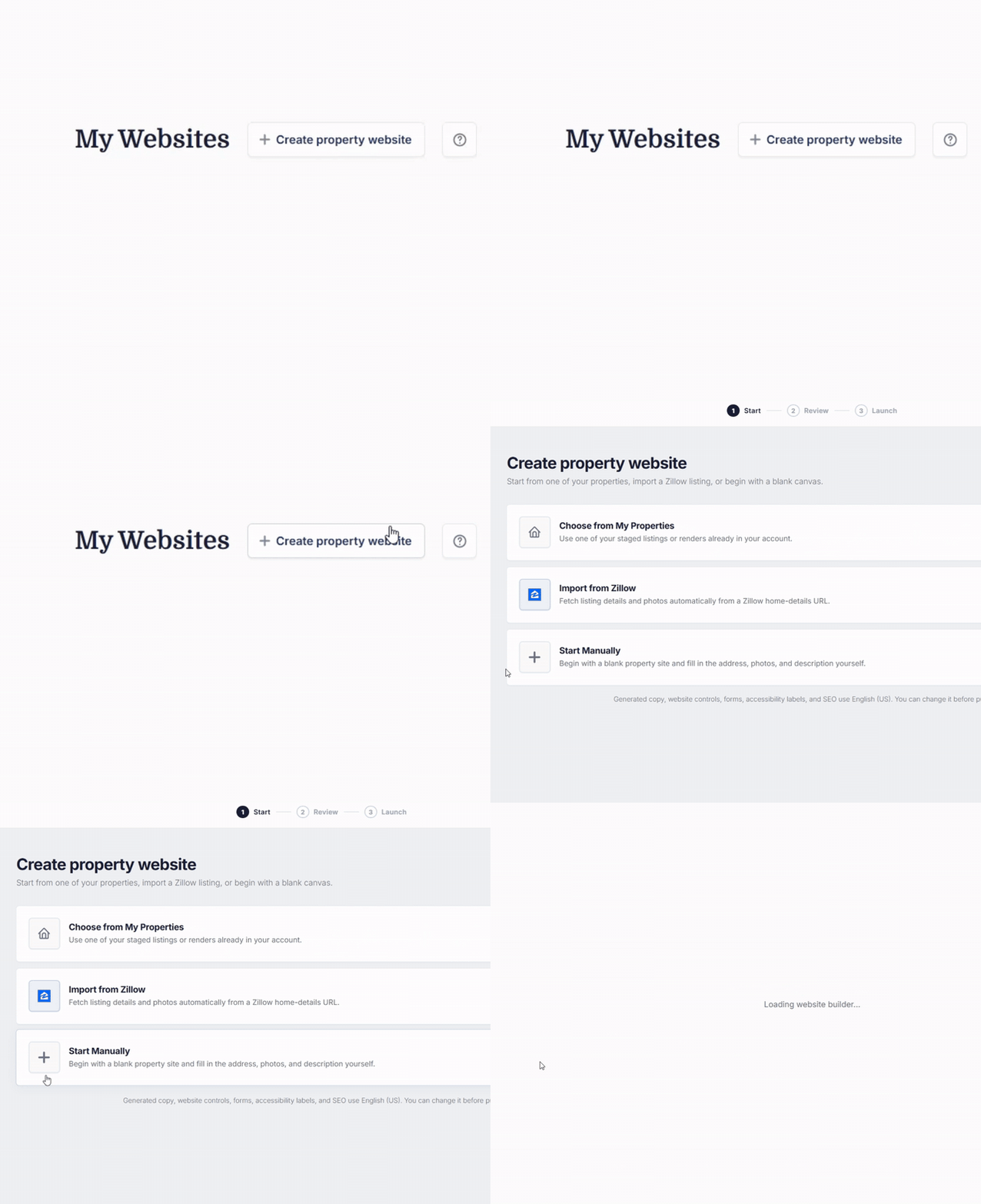
Open My Websites and pick where to start
Click Create property website. Three ways in.
- Choose from My Properties. A listing you already staged
- Import from Zillow. Paste the link, we pull the details and photos
- Start Manually. Begin blank and fill it in yourself
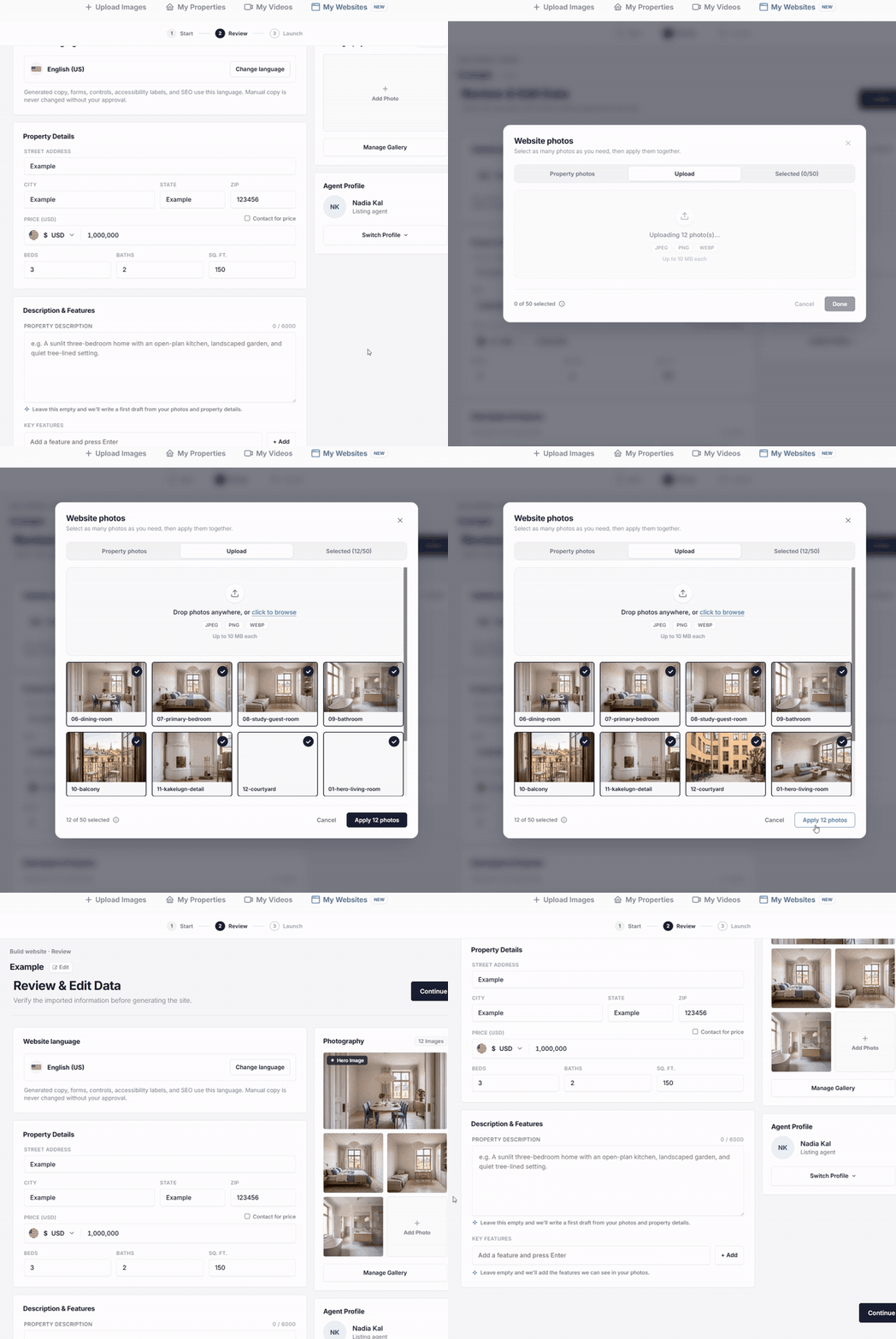
Review the property details
Check the address, price, beds, baths, and photos. Set the language and confirm your agent profile.
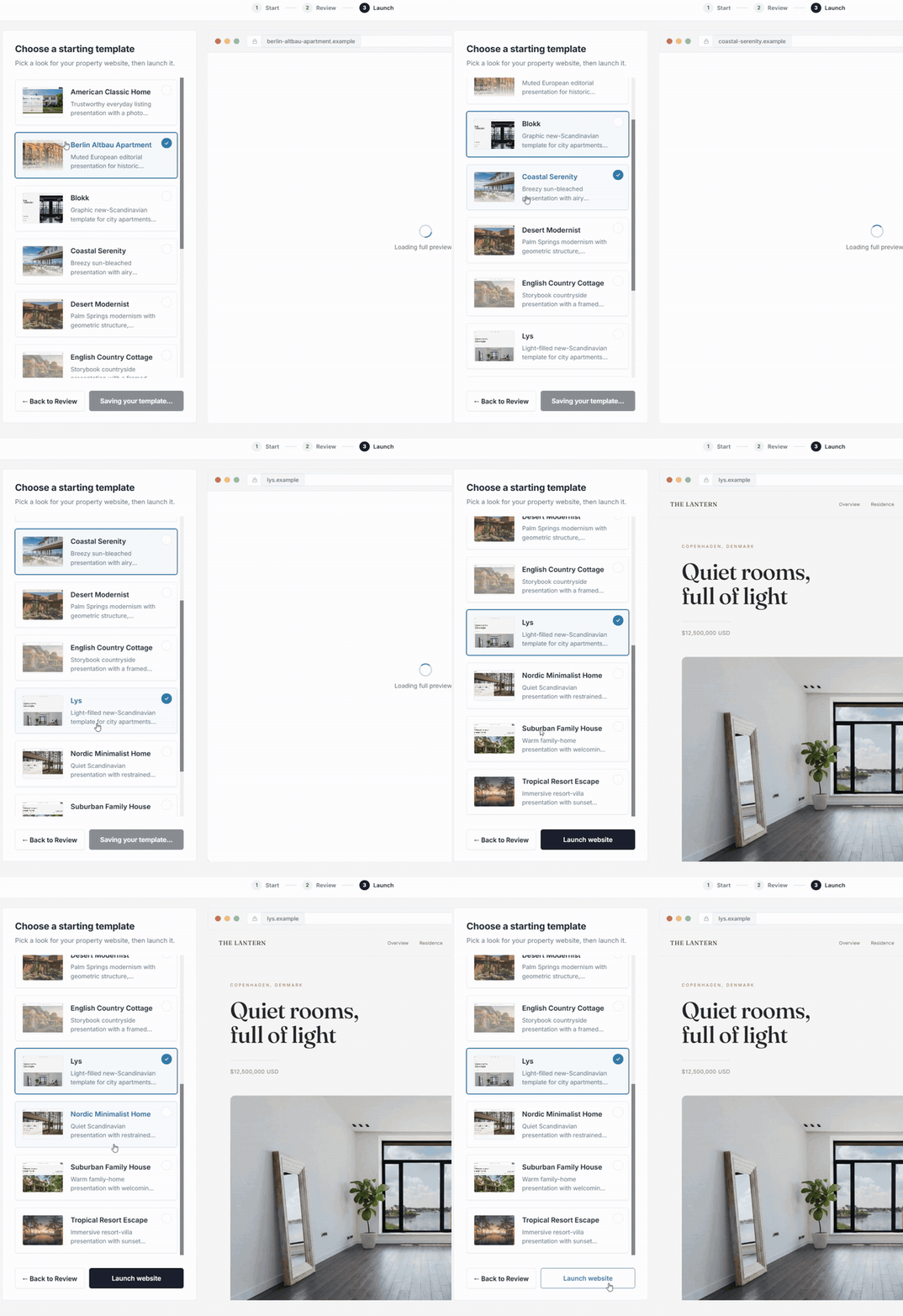
Choose a template and launch
The preview updates as you click, so you see the template on your own listing. Then hit Launch website.
Make it yours in the editor
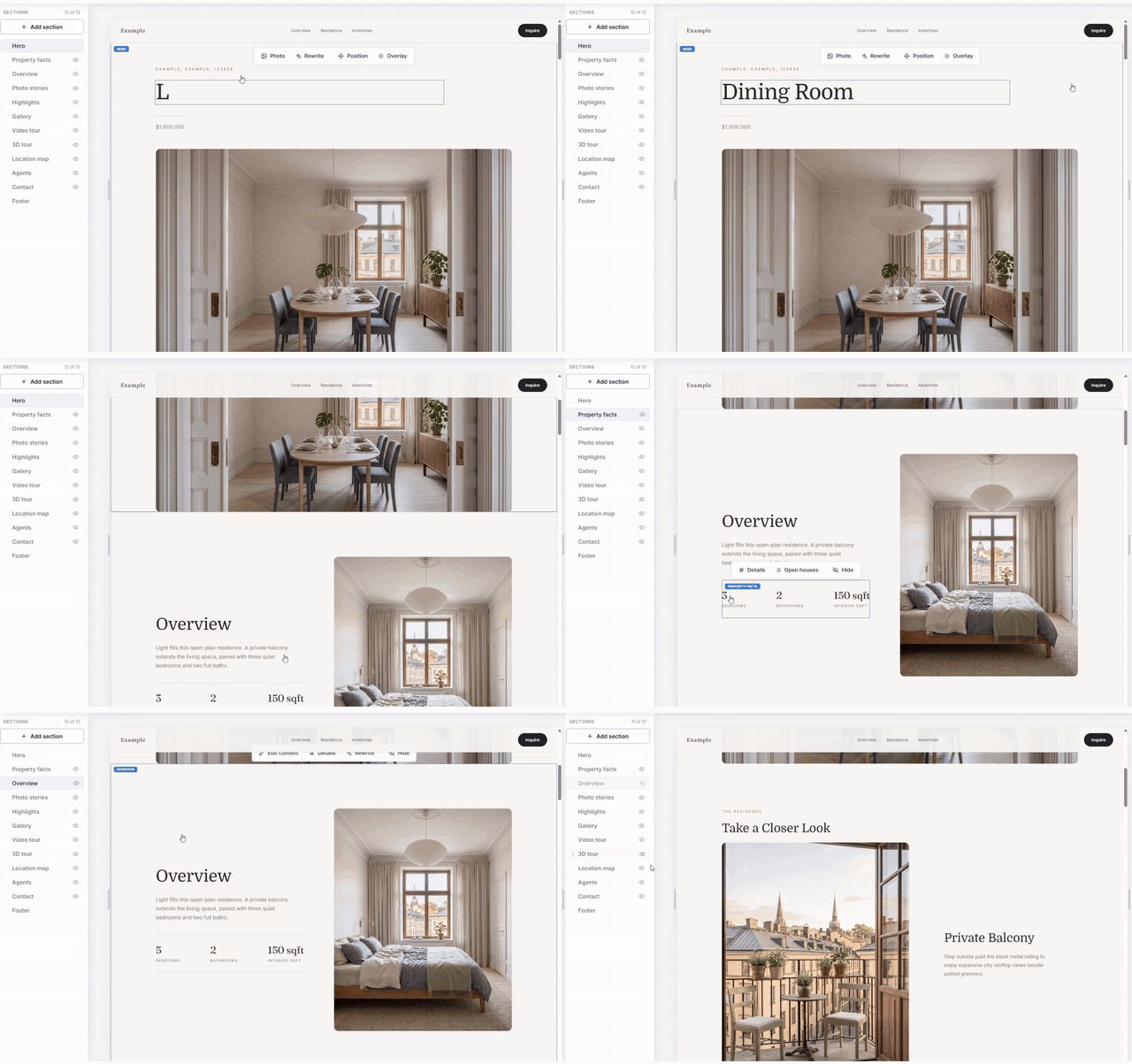
Every part of the site is a section you control. Rewrite the copy yourself or ask the AI for another version. Move sections, swap photos, add photos, or hide anything you do not need.
Preview, then publish
Use Preview to see the site the way a buyer will. Your draft stays private until you hit Publish.
Read the copy once before you do, and fix anything that does not match the home.
Changed your mind after publishing? You can pause the site any time to take it offline, keep editing, and publish again when you are happy with it.
The sections you get
- Hero
- Property facts
- Overview
- Photo stories
- Highlights
- Gallery
- Video tour
- 3D tour
- Location map
- Agents
- Contact
- Footer
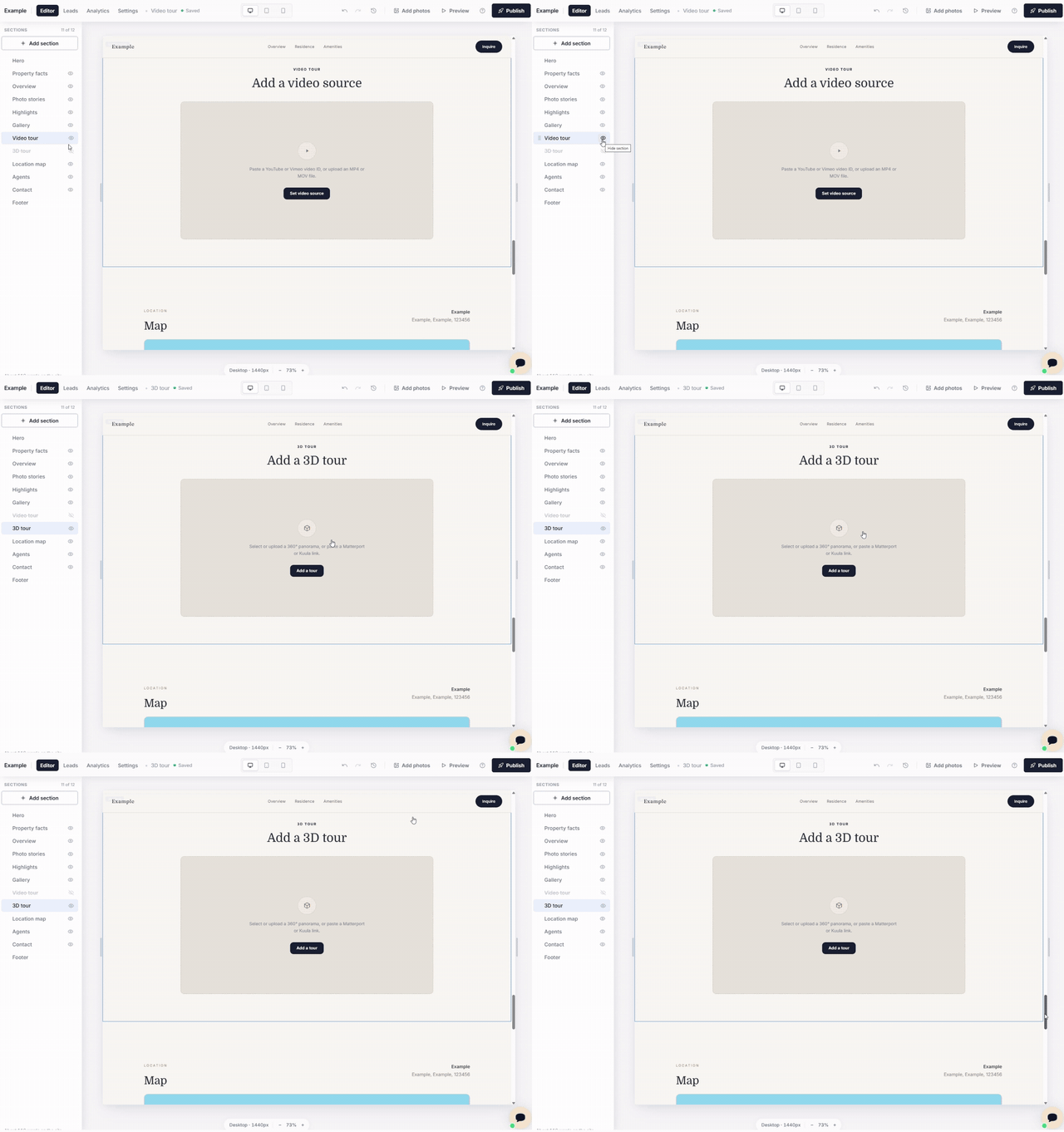
Turn any section on or off with the eye icon.
Add a video tour or a 3D tour
If you have a walkthrough video or a 3D tour, turn on the Video tour or 3D tour section and upload the file.
For 3D you can upload a 360 panorama or paste a Matterport or Kuula link.
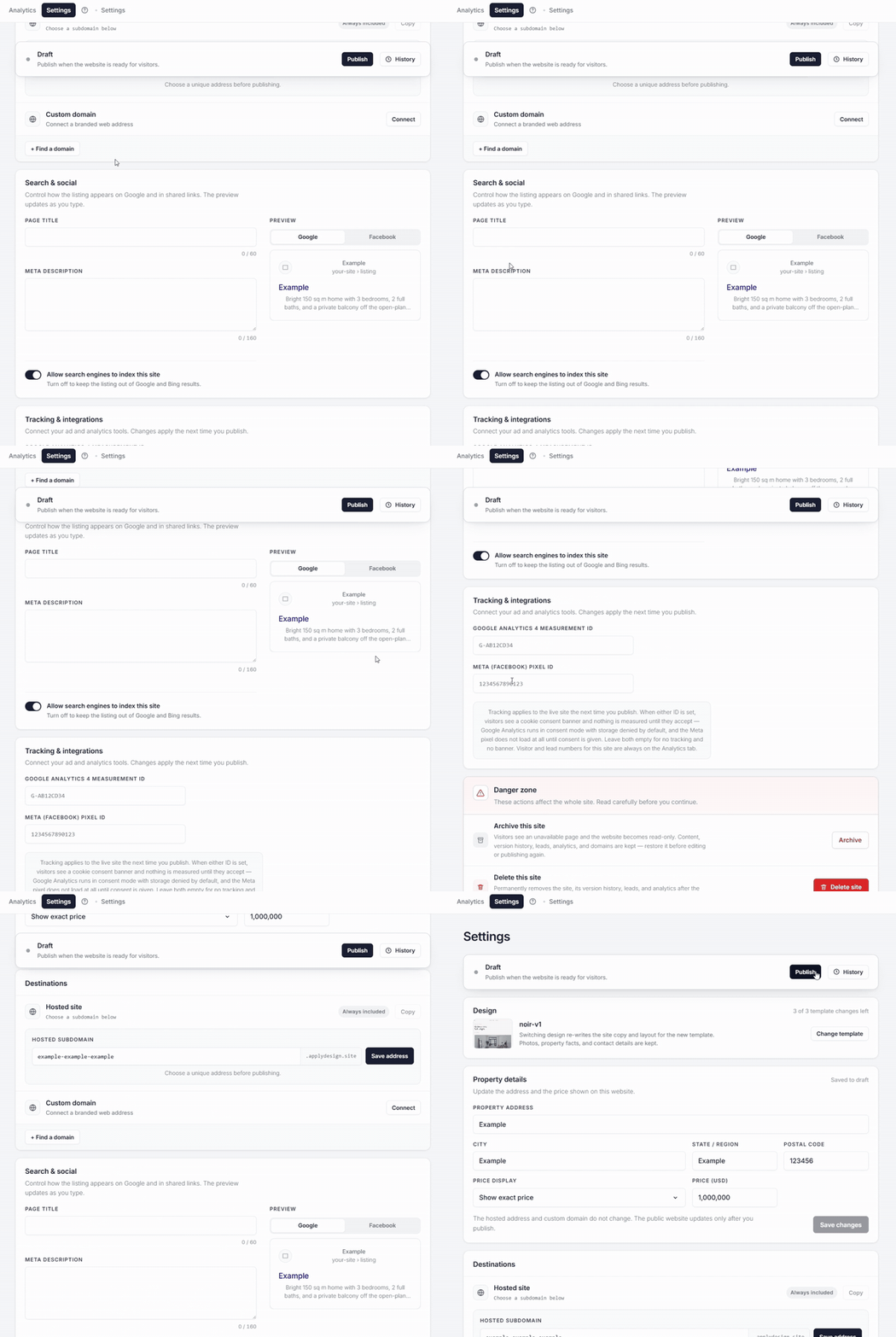
Pick your web address
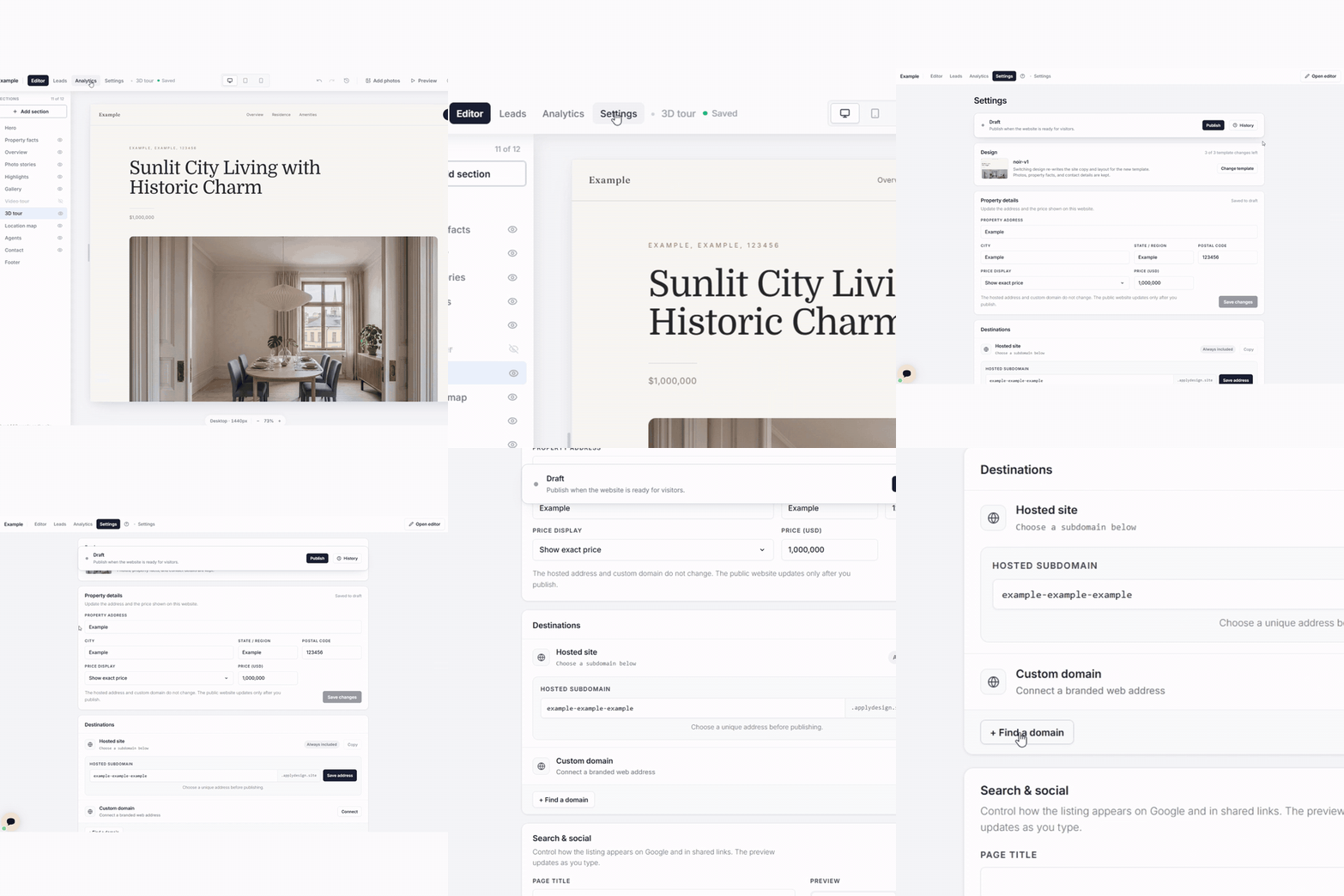
Every site comes with a free hosted address on applydesign.site. Choose the subdomain you want before you publish.
If you would rather have your own branded address, use Find a domain in Settings to buy one, or connect a domain you already own.
Control how it looks on Google and in shared links
In Settings, under Search & social, write the page title and the description buyers will see in search results and when the link is shared.
The preview updates as you type, so you can see it before anyone else does.
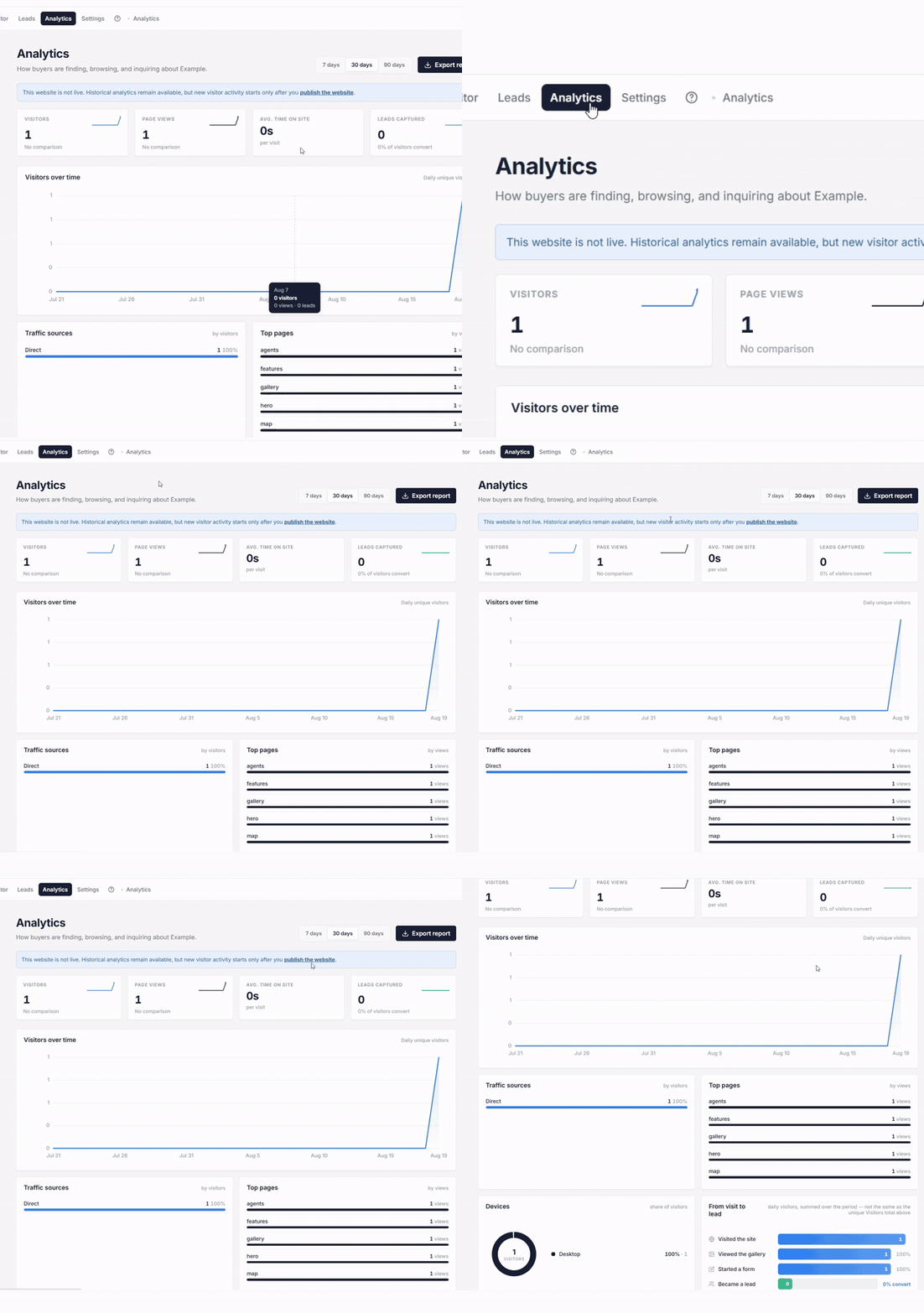
See who is looking
Once the site is live, Analytics shows visitors, page views, time on site, where the traffic came from, which sections people actually read, and how many turned into leads.
Pick 7, 30, or 90 days, and export the report when your seller asks how the marketing is going.
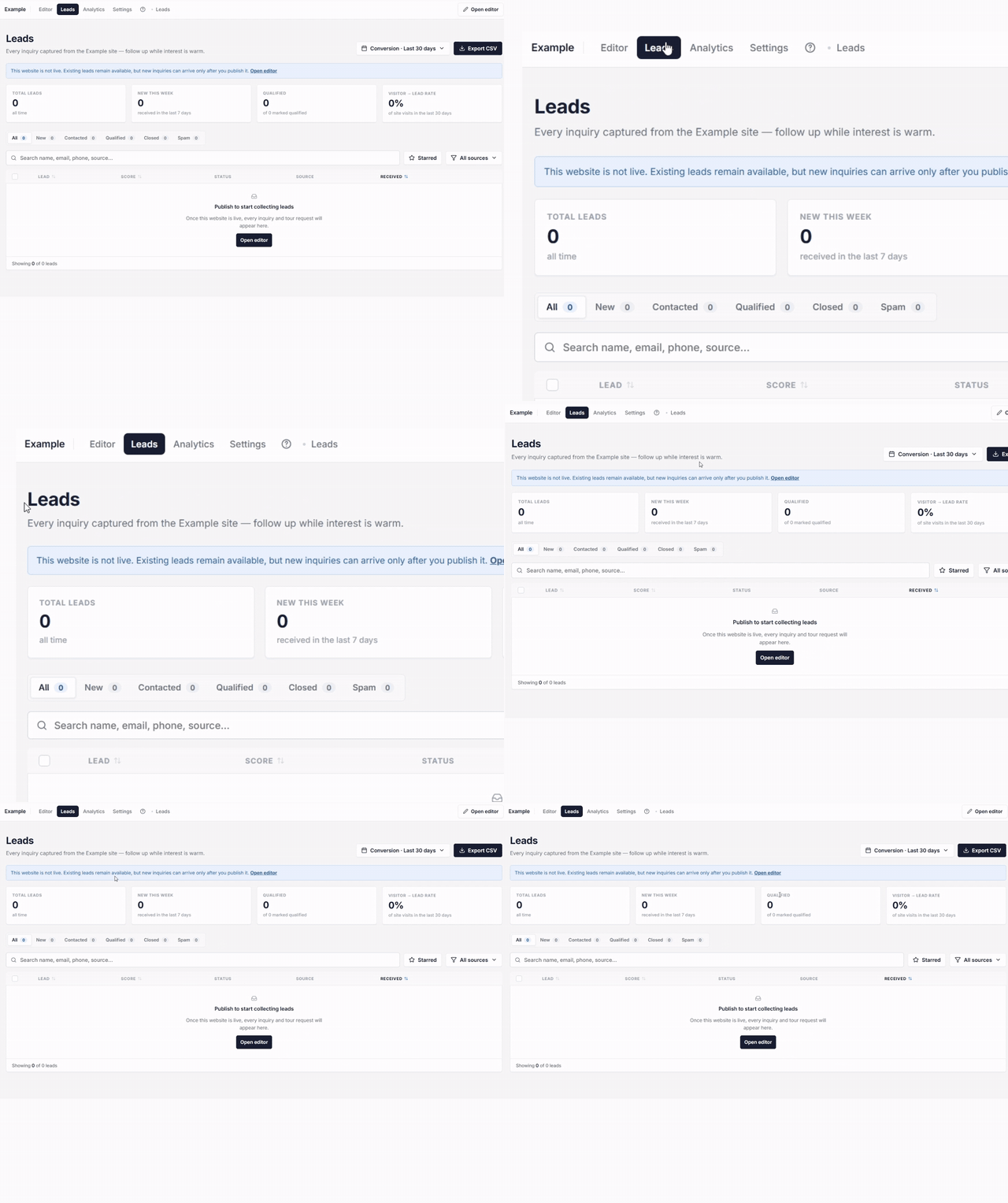
Catch every inquiry
Every inquiry and tour request from the live site lands in Leads. Sort them by new, contacted, qualified, or closed, search by name or phone, and export to CSV for your CRM.
Analytics and Leads only start collecting once the site is published.
After the home sells
You can pause the site to take it offline, come back and rework it later, or delete it for good. Republishing during your paid year costs nothing extra.
What it costs
Your first property website is free. Build it, publish it, and see how it looks before you spend anything.
After that, each property website costs 2 ApplyCoin, which covers the site and a full year of hosting. No monthly subscription, and no separate hosting bill.
When the year is up, one more coin keeps it online for another year.
Good to know
- The full website editor needs a desktop or laptop
- The copy is only as good as the details you give it, so check every fact and claim before you publish
- A custom domain takes extra time to register, verify, and secure
- Analytics can be delayed or incomplete when visitors block tracking
Questions people ask
What is a single property website?
A website built for one home only. It holds the photos, the details, and a way for buyers to reach the agent, with no other listings competing for attention.
How long does it take to create a property website?
Most drafts are ready in 1 to 2 minutes. Editing takes as long as you want it to.
Do I need design or coding skills?
No. Pick a template, review the listing details, and publish. Apply Design handles the layout and the writing.
How much does a single property website cost?
Your first one is free. After that each property website costs 2 ApplyCoin, which includes a full year of hosting. There is no monthly subscription.
How long does the website stay online?
A full year. After that, one more coin keeps it online for another year.
Can I build the site from a Zillow listing?
Yes. Paste the Zillow home details link and Apply Design pulls the listing facts and photos for you.
What web address does my property website get?
A free hosted address on applydesign.site, with a subdomain you choose. You can also buy a custom domain or connect one you already own.
Where do buyer inquiries go?
Into the Leads section of that site, so every inquiry and tour request sits next to the listing it came from. You can export them to CSV.
Can I add a video or a 3D tour?
Yes. Turn on the Video tour or 3D tour section and upload your file, or paste a Matterport or Kuula link.
Can I make a website for more than one listing?
Yes. Each listing gets its own website. The first one is free, and each one after that costs 2 ApplyCoin for the year.
Give your listing its own website
Built in about a minute. Your first one is free.


