360° staging
Plenty of services will stage a 360° photo for you. Most of them do exactly that: they stage it, and you take what comes back. Apply Design gives you the choice of letting it furnish the room automatically or designing the room yourself, with free edits for as long as you need them.
Apply Design stages 360° panoramas the way you prefer to work.
Look at how other 360° staging services work and a pattern shows. With a done-for-you studio, editors furnish the panorama and send it back a couple of days later. You can attach reference pictures and ask for changes, but someone else is doing the designing. With fully automatic AI staging, the software chooses the furniture, and often you cannot change what it places.
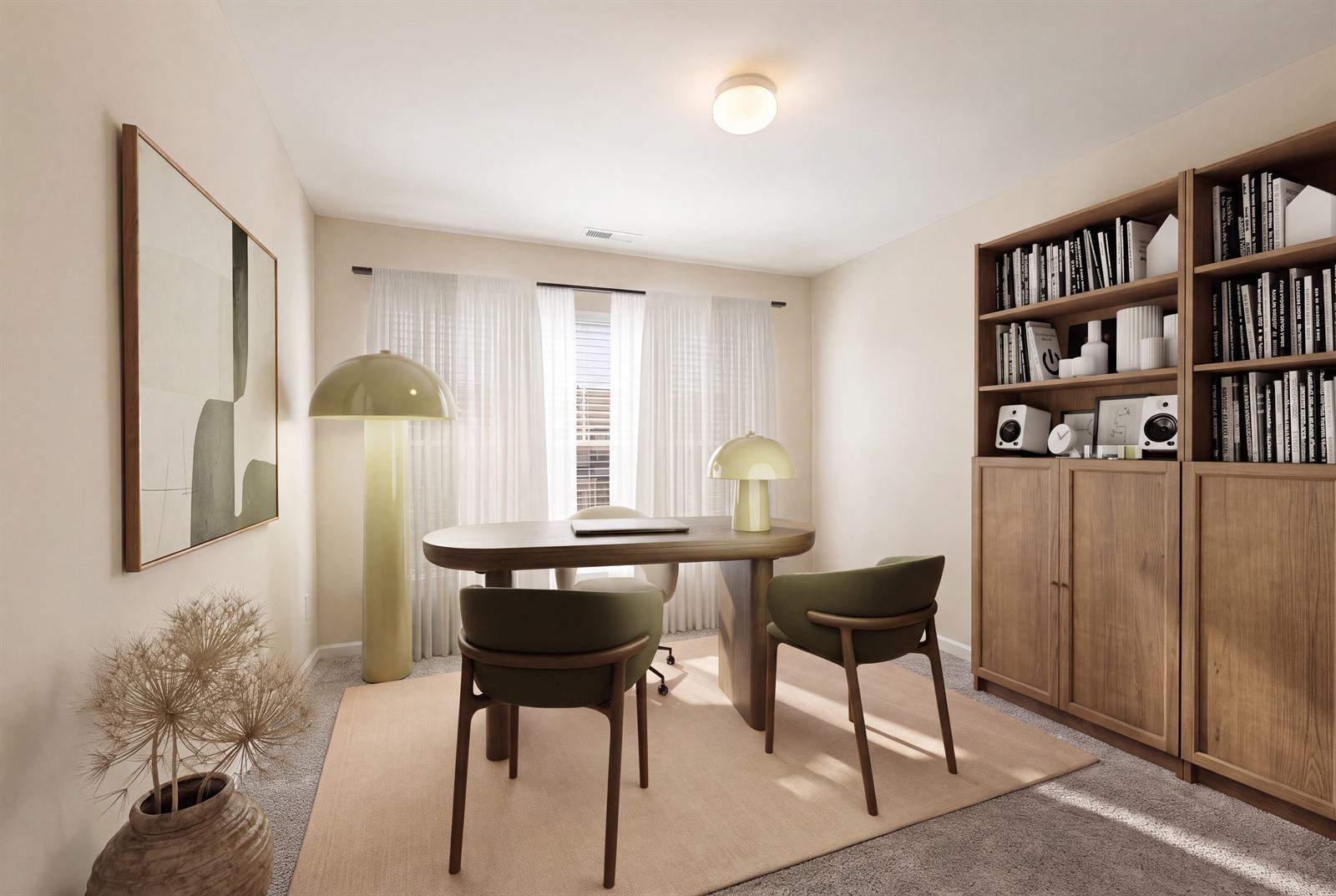
That is fine when any reasonable furnishing will do. It is frustrating when you know what the room needs: a dining table that seats eight, a desk in the spare room so buyers read it as an office, a style that suits the building. A 360° tour shows every wall, so a choice you do not agree with is hard to hide.
Apply Design is built around the choice. You can hand the job over completely, or do it yourself, and switch between the two on any panorama.
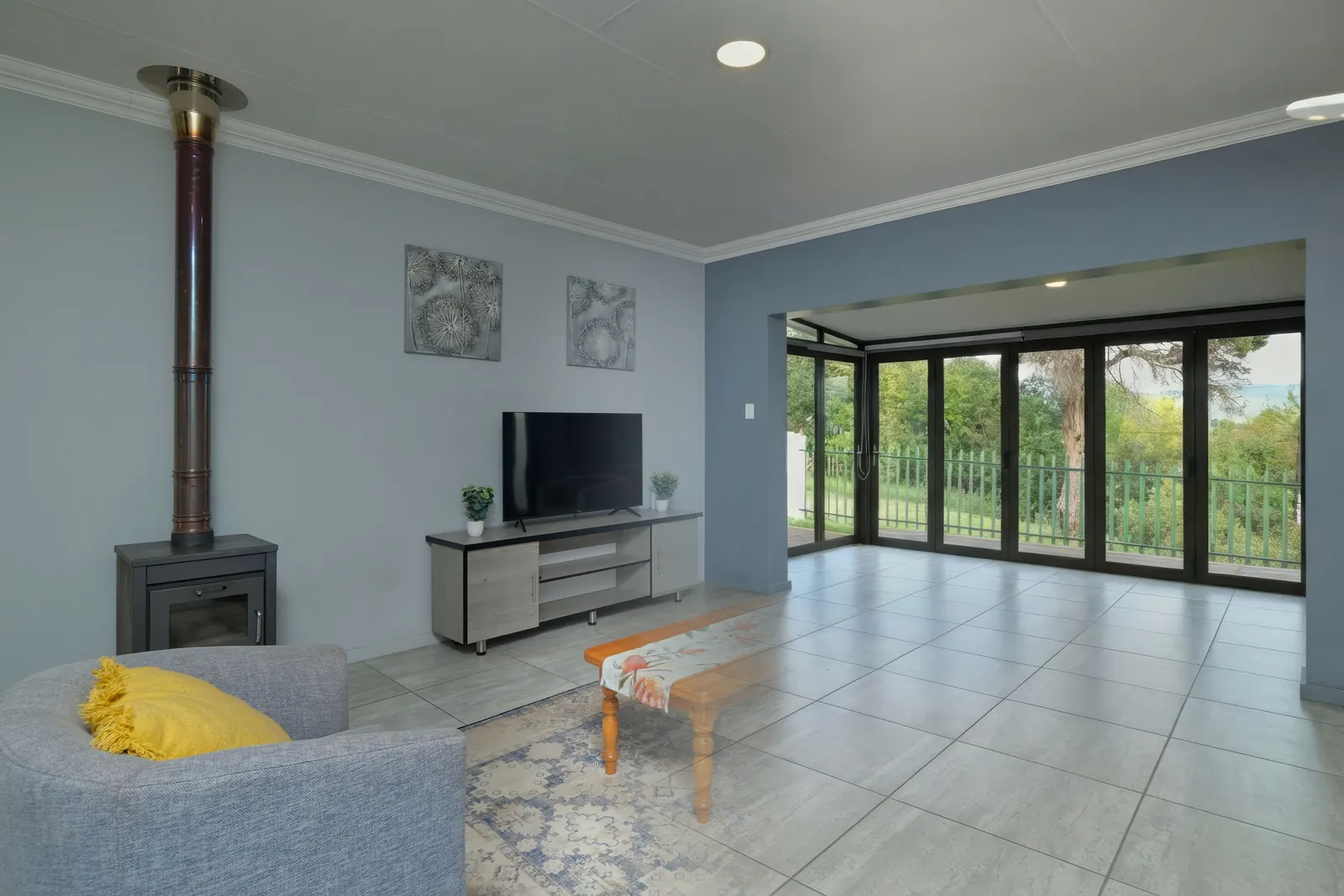
Click the panorama to see the room before staging.
Staged in Apply Design
If you do not want to design anything, you do not have to. Upload the panorama and Apply Design recognises it as a 360° image. Turn on Auto Stage, pick a style, and the whole room is furnished for you, in every direction, usually within minutes.
An Auto Stage panorama costs 2.5 coins. A coin is $7 to $10 depending on how many you buy, so that is $17.50 to $25 a panorama. Your first image is free, with no card needed.
Auto Stage is a starting point, not a final answer. Every result opens in the same editor you would use to design it yourself.
Leave Auto Stage off, or open any Auto Stage result, and you are in the drag-and-drop editor. It works on 360° panoramas the same way it does on flat photos. You add a piece from the catalogue, drag it into place, rotate it, and resize it. Then you pan around to check it from every side before you render.
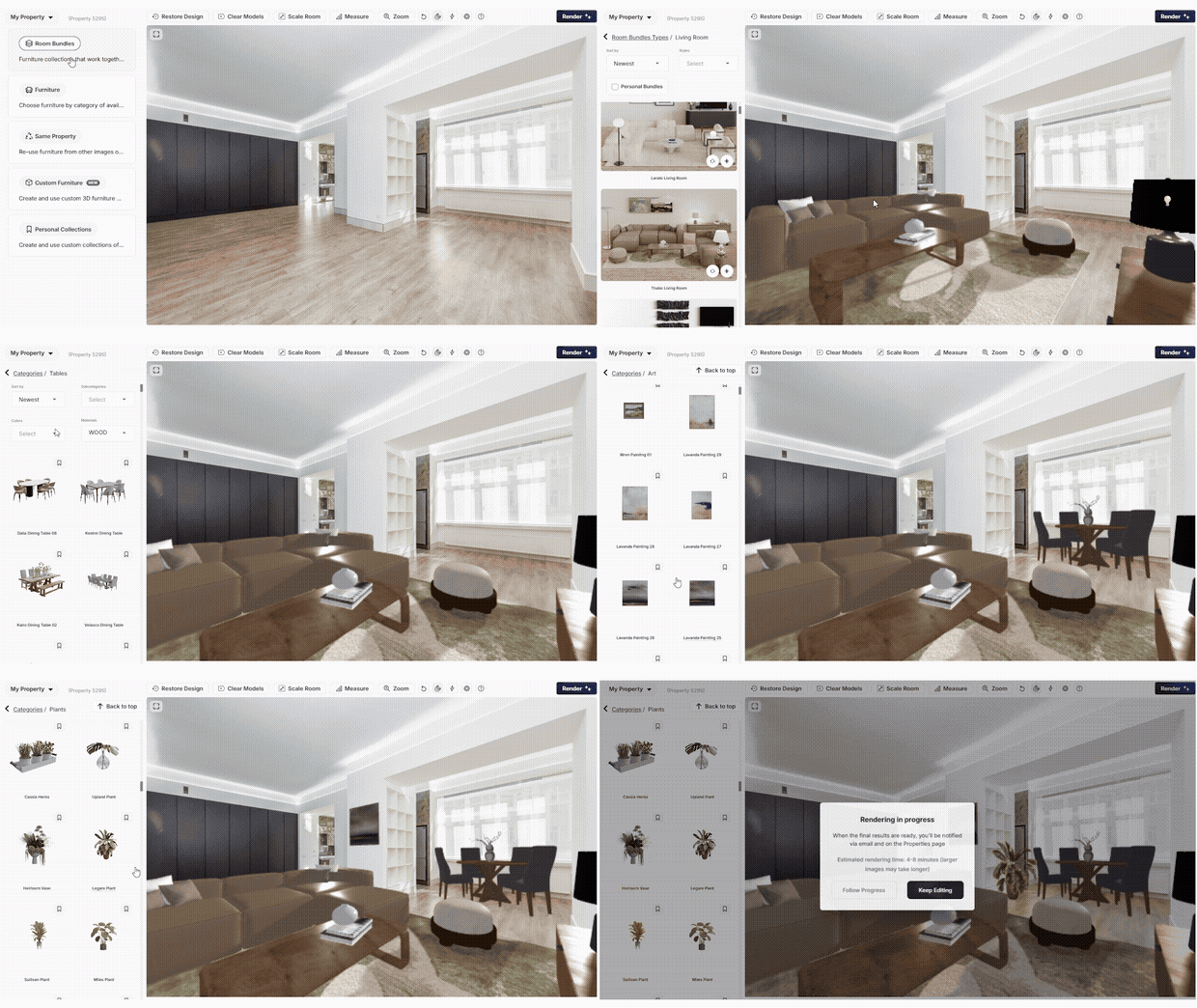
The Apply Design editor
This is what “unlimited revisions” means at Apply Design. Every change you make in the editor is free, as many times as you like: move the sofa, swap the rug, take out the plant. Each edit gives you back exactly what you placed, so nothing you have already approved changes behind your back. If you change your mind completely, Restore Design takes you back to an earlier version.
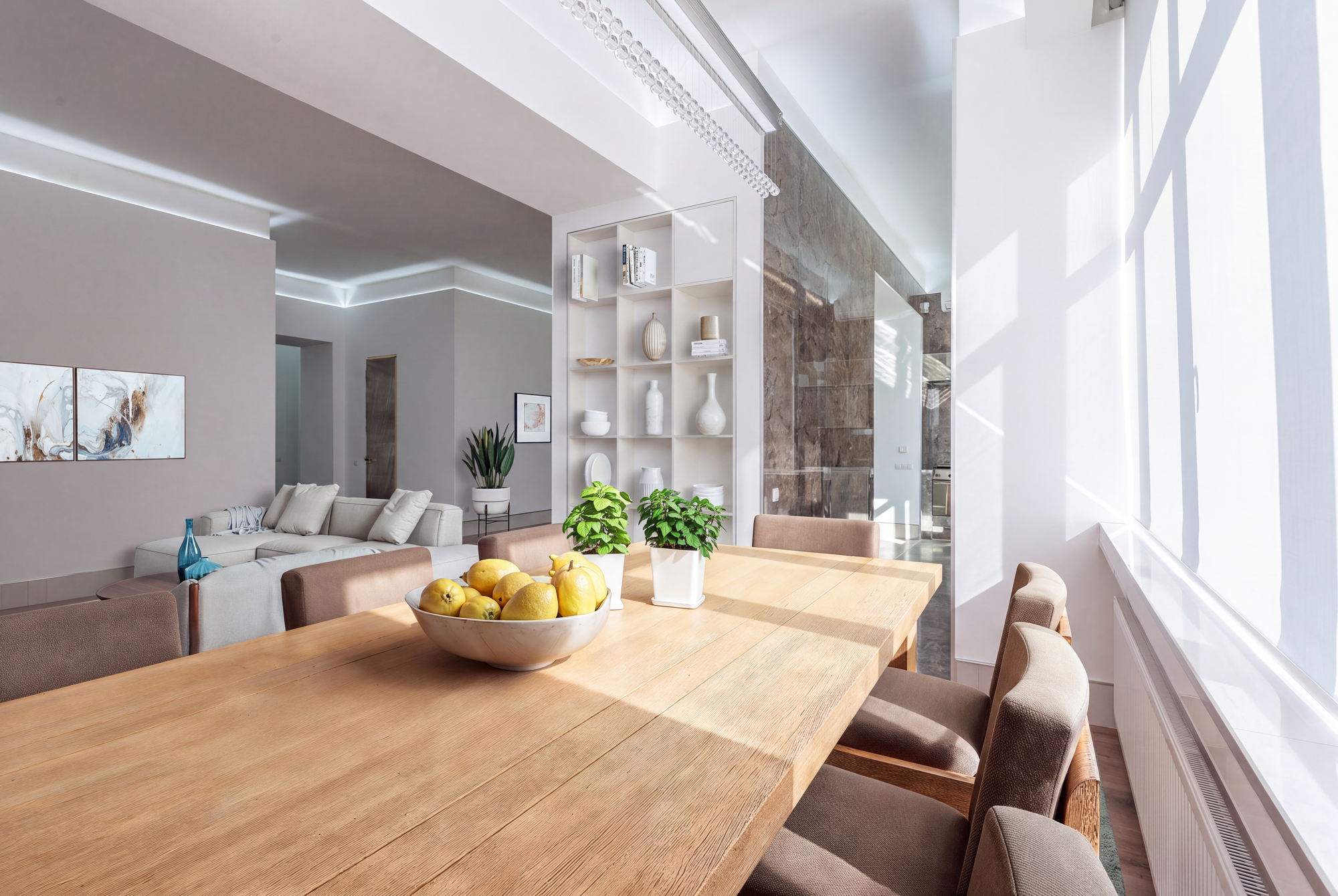
Click to look around the room before staging.
Staged in Apply Design
A tour does not stop at the living room, and neither does the catalogue. It holds a large range of 3D furniture and décor, covering every main room of a home as well as offices and outdoor spaces. That means you can stage the parts of a tour that usually get left bare.
Furniture comes in two forms. Room bundles are collections of pieces chosen to work together, so you can furnish a whole room in one move and then adjust it. Individual models let you build a room piece by piece, or add a single item to a bundle. You can also save your own personal collections, and reuse furniture you have already placed in other images of the same property.
If the piece you need is not in the catalogue, upload a photo of it. Apply Design turns the photo into a 3D model of that exact item and places it in the room with matching light, shadow and perspective. It is useful for a developer’s signature furniture, a client’s own product, or anything you want to show consistently across a listing.
Staging a panorama is harder than staging a flat photo. The furniture has to look right whichever way the buyer turns, including pieces that cross the join where the left and right edges of the image meet. Apply Design places every piece in the room’s own perspective and light, so a sofa still reads as a sofa when the buyer turns past it.
You get back a high-quality staged panorama as a JPG, ready to drop into your tour. Because you can pan around in the editor before you render, you see the result from every angle first, not after the buyer does.
No single approach suits everyone. If you would rather never open an editor, a done-for-you studio will do all the work, at a higher price and a slower pace. If you only need empty rooms furnished and are happy with whatever the software picks, the automatic staging built into some tour platforms may be enough. Apply Design suits the people who want to choose, or who want the option to.
Yes. Leave Auto Stage off when you upload, or open any Auto Stage result, and the panorama opens in the drag-and-drop editor. You add furniture from the catalogue, move, rotate and resize it, and pan around to check it from every angle before you render. A panorama you design yourself costs 2 coins.
Edits are. Moving, swapping, resizing or removing furniture in the editor is free and unlimited, and you get back exactly what you placed. Staging the panorama again from scratch is a new generation and costs coins, 2.5 with Auto Stage.
Auto Stage furnishes the whole panorama for you from a style you pick, for 2.5 coins. You turn it on when you upload. The DIY editor lets you place every piece yourself, for 2 coins. They are not either-or: every Auto Stage result opens in the editor, so you can let it do the first pass and then adjust it.
Yes. Alongside living rooms, dining rooms and bedrooms, the catalogue includes outdoor furniture for terraces, decks and gardens, and office furniture for workspaces and commercial listings.
Yes. Upload a photo of the piece and Apply Design turns it into a 3D model of that exact item, which you place in the room like any catalogue piece, with matching light, shadow and perspective.
Any platform that accepts uploaded equirectangular panoramas: download the staged image and add it to your tour. Kuula has a partnership with Apply Design, with partner pricing for its PRO and Business members.